- info@inthings.tech
- Room No. 16/591 Karinkallathani, Chethalloor-PO, Thachanattukara-II Palakkad.


About Inthings
Inthings, founded in May 2019, is a dynamic and innovative technology company driven by a team of visionary entrepreneurs and highly skilled software engineers.
Customers & Affiliations
Blog
Blog
31/01/2026
Real-Time Detection of Potholes, Speed Signs, Traffic Lights, Pedestrians, and Crosswalks Using YOLOv8 and DeepStream on Jetson Nano with CARLA Simulator
Category: Computer Vision
Introduction
In the ever-evolving landscape of road safety and autonomous vehicles, real-time object detection plays a crucial role in identifying critical road elements. For this project, we have focused on building a robust detection system capable of identifying potholes, speed signs, traffic signals, pedestrians, and crosswalks in real-time. These elements are vital for ensuring safer navigation and enhancing decision-making for self-driving systems.
To achieve this, we utilized YOLOv8, a state-of-the-art object detection model renowned for its speed and accuracy, and NVIDIA DeepStream on Jetson Nano, a high-performance framework designed for real-time video analytics. This combination provides an efficient solution for deploying a detection system that meets the demands of real-world scenarios.
In this blog, we will share the entire process, starting from training the YOLOv8 model, converting it to ONNX format, and configuring NVIDIA DeepStream for deployment. Additionally, we will explain how the system was tested using RTSP streams from Carla Simulator to simulate real-world driving conditions. This guide is designed to help those interested in building similar detection pipelines or deploying YOLO models with DeepStream.
Training YOLOv8 Model
For training the YOLOv8 model, we prepared the dataset with two main folders: train and valid. Each folder contained images in .jpg format and corresponding label files in .txt format. We also created a YAML configuration file specifying the paths to the image directories and the class names with their corresponding IDs.
Once the dataset was ready, we used a training script to train the model for 160 epochs, with an image size of 640. After the training process, the model's best weights were saved as best.pt in the runs/ directory, ready for conversion into ONNX format for deployment.
Setting Up NVIDIA DeepStream on Jetson Nano with JetPack SDK
For deploying the YOLOv8 model in a real-time environment, we chose to run the setup on the NVIDIA Jetson Nano. This low-power device is capable of accelerating deep learning models through its GPU, making it ideal for real-time inference tasks in edge applications such as autonomous vehicles or smart city monitoring systems.
The setup process began with flashing the Jetson Nano with JetPack SDK, which provides the necessary libraries like CUDA, TensorRT, and OpenCV. Once the base OS was ready, we installed the NVIDIA DeepStream SDK, a powerful toolkit for building end-to-end AI pipelines. DeepStream allows us to bypass CPU bottlenecks by handling video decoding, image scaling, and inference directly on the GPU using GStreamer-based plugins.
To ensure maximum performance on the Jetson Nano's limited hardware, we configured the system to run in MAXN mode (maximum performance) and boosted the clocks using jetson_clocks. This optimization is crucial for maintaining a high frame rate when processing multiple road elements simultaneously.
Overview of Jetson Nano
The Jetson Nano is an affordable and compact device that brings powerful GPU capabilities to edge devices. With its 128-core Maxwell GPU, it provides the necessary processing power for running deep learning models in real-time. This hardware is specifically designed to handle parallel workloads, delivering up to 472 GFLOPS of computing performance in a power-efficient envelope of just 5 to 10 watts.
We utilized the JetPack SDK, which comes pre-configured with Ubuntu 18.04, CUDA, TensorRT, and other essential libraries optimized for the Jetson platform. This SDK serves as the software foundation, enabling easy installation and configuration of DeepStream and deep learning models on the device. By leveraging the integrated TensorRT runtime, we can optimize our YOLOv8 model to achieve significantly lower latency and higher throughput during inference.
Installing JetPack SDK on Jetson Nano
We used the JetPack SDK to install all necessary components on the Jetson Nano. JetPack simplifies the process of setting up the device by bundling the Ubuntu OS, CUDA, TensorRT, and DeepStream SDK, specifically tailored for NVIDIA's Jetson platform.
Steps for installation:
- 1. Download JetPack SDK: We downloaded the JetPack SDK from NVIDIA’s official website. JetPack includes everything needed to run deep learning models on Jetson devices, including Ubuntu 18.04, CUDA, TensorRT, and DeepStream.
- 2. Flash the microSD Card: We used Balena Etcher to flash the JetPack image onto a microSD card (minimum 32GB recommended). The flashing process sets up Ubuntu 18.04 and prepares the Jetson Nano for development.
- 3. Boot the Jetson Nano: After flashing, we inserted the microSD card into the Jetson Nano and powered it on. The system boots directly into Ubuntu 18.04, and the JetPack SDK initializes, setting up the necessary environment for GPU-accelerated development.
Installing DeepStream on Jetson Nano
Once JetPack SDK was successfully installed, it included everything necessary to install DeepStream. DeepStream is a framework by NVIDIA designed for high-performance video analytics, which is perfect for deploying real-time object detection models like YOLOv8.
Steps to install DeepStream:
- 1. Install DeepStream SDK: DeepStream is integrated into JetPack, but we had to install additional components specific to DeepStream. We followed the provided steps in the DeepStream SDK documentation to install the necessary packages using the
aptpackage manager or the Debian package provided by NVIDIA. - 2. Test DeepStream: After installation, we verified the setup by running sample applications provided in the DeepStream SDK, such as
deepstream-test1-app. This ensured that DeepStream was functioning correctly, leveraging the hardware-accelerated decoders, and could be used to run complex inference tasks.
Setting Up DeepStream for YOLOv8 on Jetson Nano
With DeepStream installed, the next step was configuring it to work with the YOLOv8 model. This step is particularly important as Ultralytics provides a detailed guide for setting up YOLOv8 on Jetson Nano using DeepStream.
Key configuration steps:
1. Convert YOLOv8 Model to ONNX Format
We used the provided Python script inside the DeepStream YOLOv8 setup folder to convert the trained YOLOv8 model from .pt to .onnx format. The conversion command included the batch size of 1 and the simplification option for optimization:
python3 export_yoloV8.py -w optimized_best.pt --batch 1 --simplify
- --batch 1: Ensures the model is optimized for real-time inference with a batch size of 1, which is perfect for edge devices like the Jetson Nano.
- --simplify: Simplifies the model to improve performance by reducing size and enhancing inference speed.
2. Configure DeepStream for YOLOv8
Once our YOLOv8 model was converted to ONNX, we updated the DeepStream configuration files to seamlessly link the model, labels, and other parameters for deployment.
Key Configuration ChangesUpdating config_infer_primary_yoloV8.txt
This file contains all the details for loading and running the YOLOv8 model. The key updates were:
- Model Files: Specified the paths for
onnx-file(trafficlight_person.onnx),model-engine-file(model_b1_gpu0_fp32.engine), andlabelfile-path(trafficlight_person_label.txt). - Classes and Detection:
num-detected-classeswas set to 6. Thresholds were tuned withnms-iou-threshold=0.45andpre-cluster-threshold=0.25. - Custom Parsing: Included
libnvdsinfer_custom_impl_Yolo.soin thecustom-lib-pathand setparse-bbox-func-nametoNvDsInferParseYolo.
Updating deepstream_app_config.txt
This file governs the entire DeepStream pipeline. Key configurations included:
- RTSP Source: Defined the video input (
rtsp://192.168.1.37:8554/carla_stream) at 1280x720 resolution and 30 FPS. - Inference & OSD: Linked the primary GIE to our YOLOv8 config and enabled the On-Screen Display for bounding boxes and labels.
- Output & Muxer: Configured a display sink (type=2) and set the stream multiplexer to a batch size of 1 to match our input dimensions.
Pipeline Flow
Here’s how the pipeline operates during a live run:
- Input: The RTSP source streams video into the pipeline.
- Preprocessing: The Stream Multiplexer (Streammux) prepares the video frames.
- Inference: The Primary GIE processes frames using the YOLOv8 model.
- Visualization: The OSD overlays bounding boxes and class labels.
- Output: The Sink renders the final processed video in real time.
Streaming CARLA RGB Camera Feed to DeepStream Pipeline Using RTSP
In this blog, we will explain how we set up an RTSP stream from CARLA’s RGB camera feed and used it with a DeepStream pipeline for real-time processing. Below, we break down the process into key steps for clarity.
1. Connecting to the CARLA Simulation
The first step involves connecting to the CARLA server and accessing its simulation world. This connection allows us to interact with the environment, spawn vehicles, and attach sensors. Setting a reasonable timeout ensures that communication with the server is reliable, especially when working with large or complex simulations.
2. Setting Up an RTSP Server
We used GStreamer to create an RTSP server that streams video from CARLA’s RGB camera. The server encodes the camera feed into the H.264 format, which is a widely used video compression standard. The RTSP server processes frames from the camera and streams them over the network, making them accessible via an RTSP URL. The stream is designed to be low-latency, ensuring it’s suitable for real-time applications like DeepStream.
3. Adding a Vehicle to the Simulation
Once the world is initialized, we selected a vehicle blueprint from CARLA’s library and spawned it at a specific location in the simulation. This vehicle serves as the dynamic platform for attaching the RGB camera.
4. Configuring and Attaching the RGB Camera
We configured the RGB camera to capture high-resolution video with a wide field of view, ensuring good coverage of the surroundings. The camera was then attached to the vehicle at a suitable position (e.g., on the roof or near the windshield) to provide an optimal perspective.
5. Enabling Autopilot for the Vehicle
To simulate realistic driving scenarios, we enabled autopilot mode for the vehicle. This feature allows the vehicle to navigate through the simulation autonomously, capturing dynamic scenes that can be streamed in real-time.
6. Capturing and Processing Camera Frames
The camera captures frames in real-time, and we processed these frames to prepare them for streaming. The raw image data was converted into a format compatible with GStreamer, ensuring smooth integration with the RTSP pipeline.
7. Starting the RTSP Stream
The RTSP server was then started, making the video stream available over the network. The stream can be accessed via an RTSP URL, allowing integration with DeepStream or other applications that process video streams.
8. Cleaning Up Resources
Finally, when stopping the script, we ensured the autopilot mode was disabled and the camera feed was stopped. This step prevents any unnecessary resource usage or background processes.
Overview of the Workflow
- CARLA Simulation: Provides a realistic environment with vehicles and sensors.
- RGB Camera: Captures high-quality video from the vehicle’s perspective.
- RTSP Server: Streams the video feed over the network using the H.264 format.
- RTSP URL: Makes the stream accessible for integration with DeepStream or other processing pipelines.
This setup allows us to stream CARLA’s RGB camera feed efficiently and use it in real-time applications. The RTSP pipeline ensures low-latency streaming, making it ideal for tasks like object detection or scene analysis with DeepStream.
"Edge AI deployment requires a delicate balance between model complexity and hardware computational limits."
--- Technical Insight
Testing with RTSP Stream from CARLA Simulator
Now that the RTSP stream from CARLA is set up, the next step is to test it using NVIDIA DeepStream on the Jetson Nano. The process is simple and involves running the simulation, starting the RTSP stream, and using DeepStream for inference.
Step 1: Start the Simulation in CARLA
First, launch the CARLA simulator and press Play to start the simulation. Once the simulation is running, execute the Python script provided earlier:
python carla_rtsp.py
This script will perform the following actions:
- Spawn a vehicle in the simulation.
- Attach a camera sensor to the vehicle.
- Enable autopilot for the vehicle.
- Start an RTSP stream at
rtsp://192.168.1.37:8554/carla_stream.
Ensure the script is running without errors before proceeding to the next step.
Step 2: Run Inference with DeepStream
On the Jetson Nano, open a terminal and execute the following command to start DeepStream with the RTSP stream as input:
deepstream-app -c deepstream_app_config.txt
The deepstream_app_config.txt file should already include the IP address of the PC running the CARLA simulator, which we configured earlier. This command initializes the inference pipeline and starts processing the RTSP stream.
We saw the video feed from the CARLA RGB camera on our screen, displaying real-time object detection results with bounding boxes and labels for potholes, pedestrians, and traffic signals.
In the next part of this blog, we will share an image of the results we achieved with this setup!
Results
After successfully setting up the RTSP stream and running the DeepStream pipeline, we obtained real-time object detection results from the CARLA simulator. Below are two images showcasing the detection output:
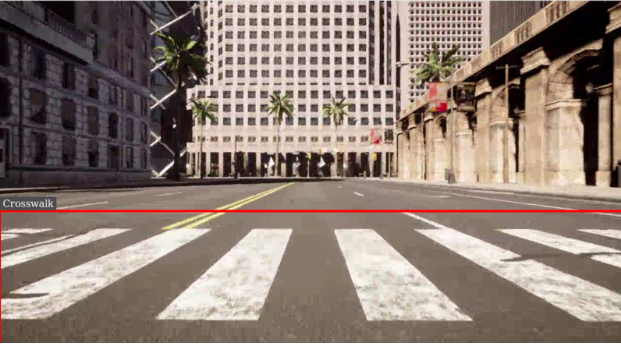
1. Crosswalk Detection
This image demonstrates the model’s ability to detect crosswalks in the CARLA simulation environment, highlighting its potential for traffic scene analysis.
1. Crosswalk Detection
2. Red Light Detection
Here, the model accurately detects a red traffic light, showcasing its utility in autonomous driving scenarios for traffic signal recognition.
2. Red Light Detection
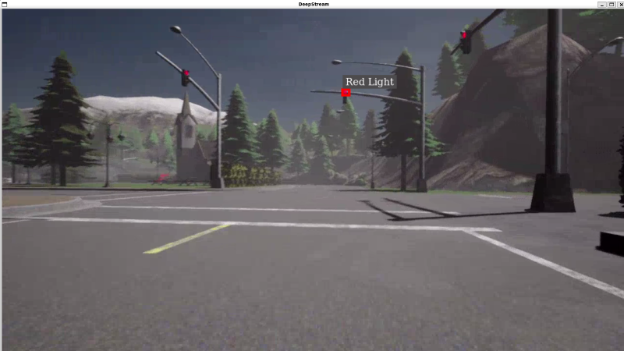
These results validate the seamless integration of CARLA simulation, RTSP streaming, and NVIDIA DeepStream SDK for real-time object detection.
Conclusion
In this blog, we demonstrated how to set up an RTSP stream from the CARLA simulator’s RGB camera feed and integrate it with the DeepStream pipeline for real-time object detection. We covered the steps from configuring the CARLA simulation to running the DeepStream inference pipeline on the Jetson Nano.
The results highlight the effectiveness of combining CARLA’s simulation with NVIDIA’s DeepStream SDK for real-time detection, offering a solid foundation for autonomous driving research. This setup can be expanded for additional detection tasks or sensors, enabling further development in autonomous systems.